The 2024 SPD-U Student Competition is Now Open!
/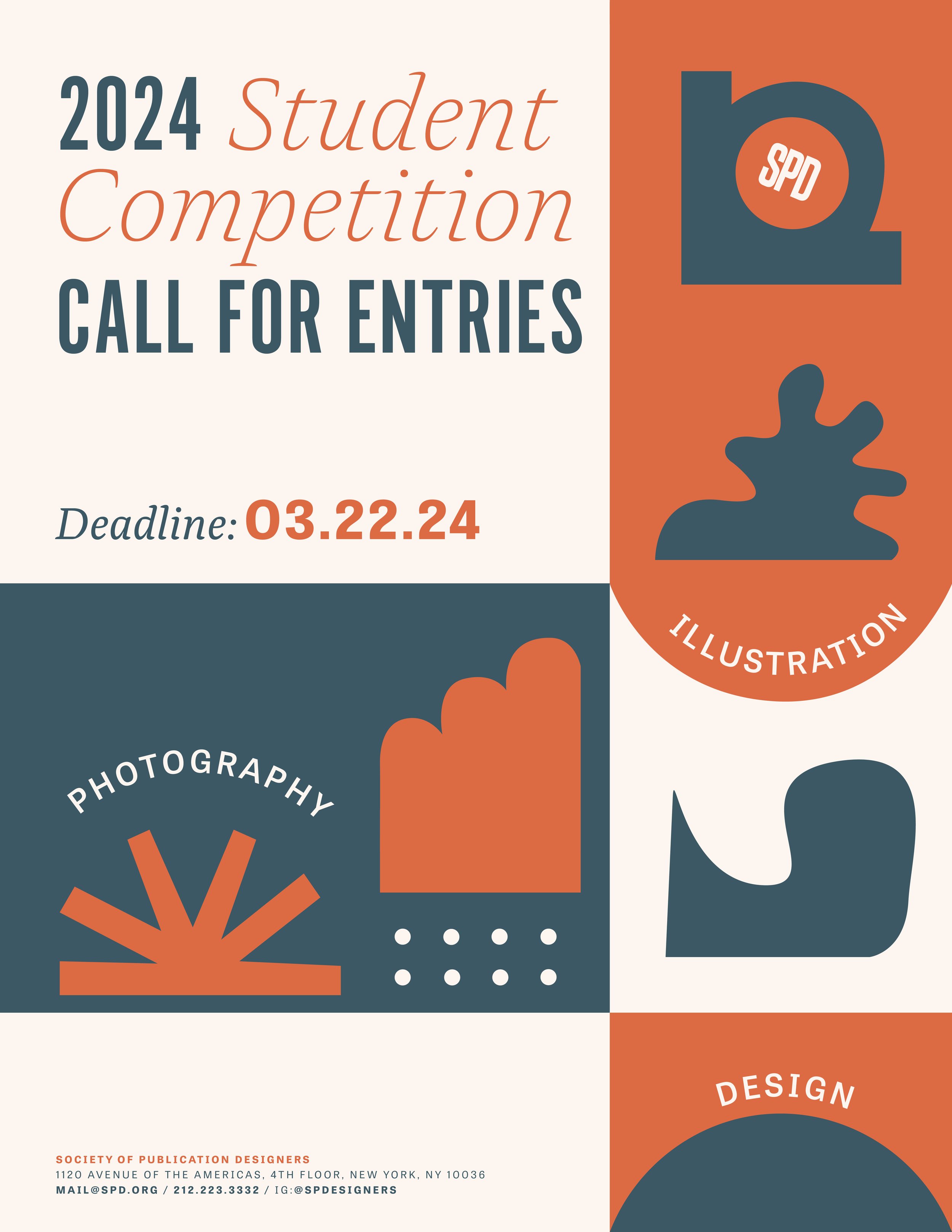
The 2024 SPD-U Student Competition is Now Open!
Enter by Friday, March 22nd, 2024 at 5:00PM ET!
Check it out and enter in our Design, Photography, & Illustration categories!
WANT TO ENTER? GET THE DETAILS BELOW!
OFFICIAL RULES & ENTRY FORM
Download the official CALL FOR ENTRIES with the complete rules and entry form HERE!
DEADLINE
Friday, March 22nd, 2024 at 5:00PM ET
SPD must receive all student entries, completed entry forms, and payment receipts by March 22nd at 5:00PM ET.
ENTRY FEES / PAYMENT
SPD Student Members get their first 3 entries FREE! (Though student members can enter more than that...if you do, any additional entries will cost $10 each.) Please note: Even though they're free, you must register your 3 free member entries HERE.
If you're not a member but would like to join, you can purchase your SPD Student Membership and register for your 3 free member entries at the same time HERE.
Otherwise, each entry is $10.
PRIZES
The first, second, and third place winners and runners-up in Design, Photography, and Illustration will be featured online at spd.org. Second and third place winners will also receive a 20-minute portfolio review with a board member.
In addition to being featured online, first place winners will also receive the following:
DESIGN: $1,200 + Summer 2024 Mentorship
PHOTOGRAPHY: $1,200 + Summer 2024 Mentorship
ILLUSTRATION: $1,200 + Summer 2024 Mentorship
Any questions? Email us at mail@spd.org.
Download the Call for Entries here!
You can pay your entry fees online here: http://bit.ly/SPD-U
YOU MUST INCLUDE THE RECEIPT WITH YOUR ENTRY. If we cannot find proof of payment or a valid SPD Student Membership, your entries may be disqualified.
Please upload your entries here: http://bit.ly/SPDentry
Make sure to include your entry form and payment receipt with your submission as one (1) PDF. You must fill out the entry form found in the call for entries.